Docs/Participant Presets & CSV Matching

Participant Presets & CSV Matching

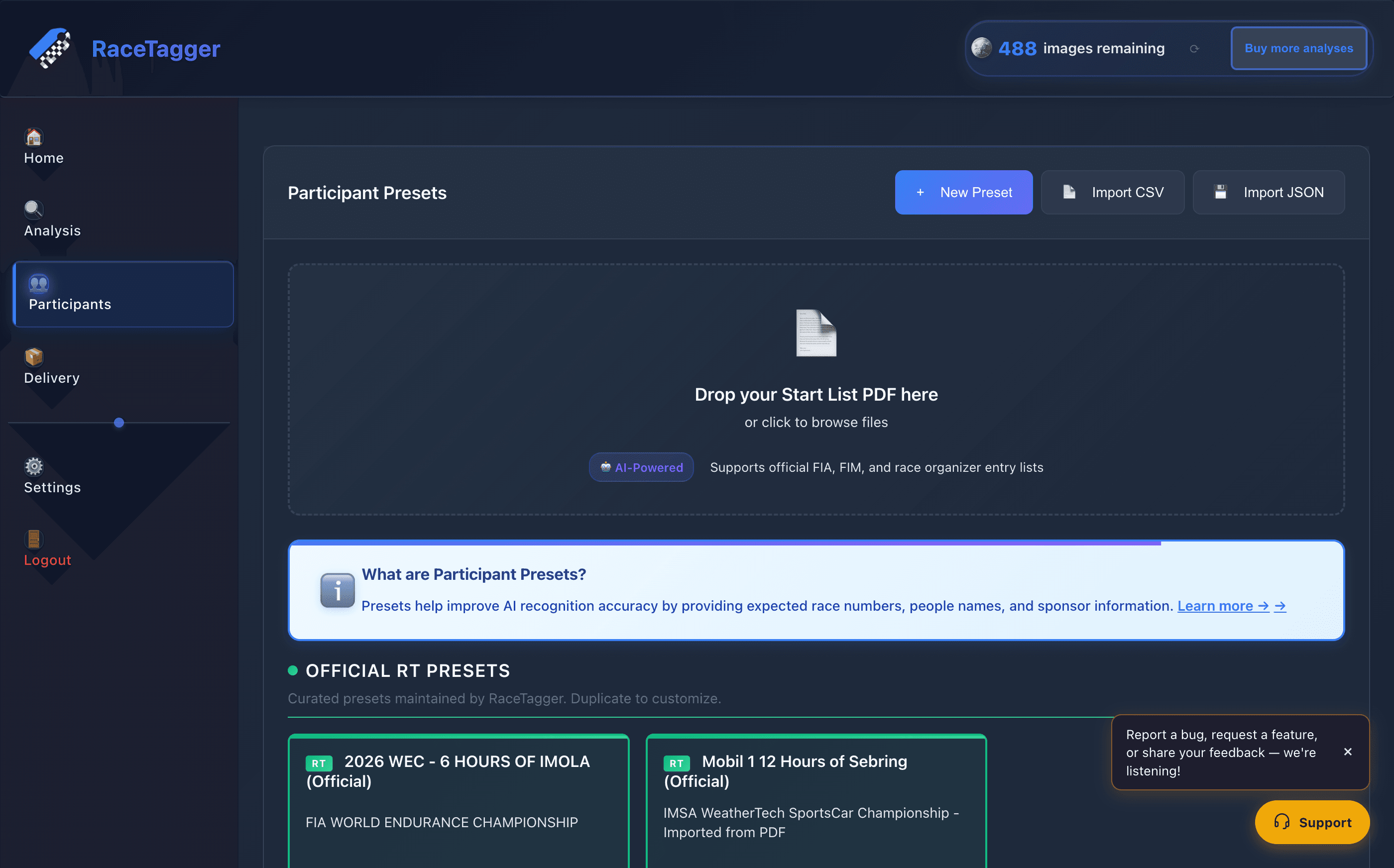
Once the AI detects a race number, participant presets let RaceTagger automatically match it to a name, team, and other info. This data gets embedded in photo metadata and folder names, making your post-processing workflow faster and more accurate.

participants screen

What Are Participant Presets?

A participant preset is a list of participants for a specific event. It acts as a reference database that RaceTagger uses to enrich detected race numbers with human-readable information.

Each preset contains:

  • Race Number: The numeric identifier (e.g., "42", "7")
  • Name: Participant's full name (e.g., "John Smith")
  • Team/Sponsor: Affiliated organization (e.g., "Team Ferrari")
  • Category/Class: Race class or division (e.g., "GT3 class")

When the AI detects the number "42" in a race photo, RaceTagger automatically looks up that number in the active preset and finds "John Smith - Team Ferrari - GT3 class". This matched information is then written to the photo's metadata and used for intelligent folder organization.

Creating a Preset from CSV

The easiest way to create a participant preset is by importing a CSV file with your event data. Follow these steps:

  1. 1Open RaceTagger and navigate to Presets: Find the Presets section in the sidebar navigation.
  2. 2Click "Manage Presets" in the sidebar: This opens the preset management panel.
  3. 3Click "Import CSV": Initiate the import workflow.
  4. 4Select your CSV file from your computer: Browse to the CSV file containing your event participant data.
  5. 5Map columns to fields (number, name, team, category): Tell RaceTagger which CSV columns correspond to race number, name, team, and category.
  6. 6Preview the imported data and confirm: Review the parsed data to make sure everything looks correct before saving.

Tip

RaceTagger reads your column headers by name, so you don't need to map each field manually. Header names are case-insensitive and common variants are accepted — `Bib Number`, `Bib` and `Number` all resolve to the race number. See the full list below.

Expected CSV Format

Here's an example of a properly formatted participant CSV:

number,name,team,category
1,Max Verstappen,Red Bull Racing,Formula 1
44,Lewis Hamilton,Ferrari,Formula 1
11,Sergio Perez,Red Bull Racing,Formula 1
16,Charles Leclerc,Ferrari,Formula 1
55,Carlos Sainz,Ferrari,Formula 1

Delimiter: use commas

RaceTagger reads comma-separated files. Semicolons and tabs are not supported as delimiters.

This matters if you work in a European locale: Excel in Italian, German, Romanian and similar settings exports CSV with semicolons by default, and that file will not import. When saving from Excel, pick CSV UTF-8 (Comma delimited). From Google Sheets, File → Download → Comma-separated values already gives you the right format.

Accepted column names

Headers are case-insensitive, and a space works the same as an underscore (Bib Number = bib_number). Each field accepts several names:

  • Race / bib numberNumber, Numero, Bib, Bib Number, Race Numberrequired
  • PersonDriver, Name, Person, Nome
  • TeamTeam, Squadra
  • CategoryCategory, Categoria, Class
  • PlatePlate, Plate Number
  • Optional extrasCar Model, Nationality, Sponsors, Metatag, Folder_1, Folder_2, Folder_3

You don't need every column: a two-column file with just a number and a name works. The race number is the one column you can't leave out — without a column RaceTagger recognizes as the number, the import stops and tells you which headers it found, rather than creating a preset that can never match a photo.

Official Presets

For major sporting events, RaceTagger may have official presets available. These presets are maintained by the RaceTagger team with up-to-date, verified participant data.

Benefits of Official Presets

- Pre-verified data from official event sources - Automatic updates before each event - No manual CSV creation required - Guaranteed consistency across photographers

To use official presets:

  1. Open the app and go to Presets
  2. Check the "Official Presets" section
  3. Browse available events and select one
  4. The preset downloads and activates automatically

If your event isn't listed in the official presets, you can request it through the app or create your own custom preset from your event's participant list.

Using Presets During Analysis

Once you have a preset ready, using it during photo analysis is straightforward:

  1. Start a new analysis batch in RaceTagger
  2. Select a preset from the "Participant Preset" dropdown
  3. Configure other analysis settings as needed
  4. Begin analysis — the AI will automatically match detected numbers against your preset

During analysis, RaceTagger will:

  • Detect race numbers in each photo
  • Look up each number in your active preset
  • Attach matching participant data (name, team, category) to the photo metadata
  • Use this data for intelligent folder organization and file naming

Note

If a race number is detected but doesn't match any entry in your preset, it's still recorded and tagged. You'll just get the raw number without participant information. You can add missing entries to your preset anytime.

Match Types

RaceTagger uses intelligent matching to link detected numbers to preset participants. Here are the different match types you might see:

Exact Match — The race number detected in the photo matches exactly with an entry in your preset. Example: AI detects "42" and preset has participant number "42". This is the most reliable match type.

Corrected Match — The AI detected a number that's slightly off (e.g., "4Z" instead of "42"), but RaceTagger's smart matching algorithm recognized the likely intended number and corrected it using the preset data. This is common with motion blur or angle distortion.

Ambiguous — The detected number could match multiple participants in your preset (e.g., participant "4" and participant "42" both exist, but the detection confidence is unclear which one). These matches are flagged for manual review.

No Match — A race number was detected in the photo, but it doesn't exist in your active preset. The number is still recorded and saved, but without participant enrichment. Consider adding missing participants to your preset for future events.

Tips for Best Results

Here are some best practices to maximize the accuracy and usefulness of your participant presets:

  • Keep CSV data clean — Remove extra spaces, special characters, and formatting inconsistencies. Data quality directly impacts matching accuracy.
  • Update presets before each event — Driver numbers, team rosters, and participant lineups change frequently. Always refresh your preset before starting a new event.
  • Include the category/class column — For multi-class events, including the category field enables smarter folder organization and makes results easier to filter.
  • Maintain multiple presets — Keep separate presets for different events, seasons, or series. You can quickly switch between them before analysis without re-importing data.
  • Verify official preset sources — When using official presets, check that they match your event's official entry list or series documentation.