
Visual Tagging
Visual Tagging is an optional add-on that extracts rich, searchable metadata from every photo — scene type, shooting technique, weather conditions, and more — and turns your archive into a searchable library.
Visual Tagging is an optional add-on to a normal analysis run. On top of the usual race-number recognition, it extracts descriptive tags for each photo across six categories: Location (track, city, landmarks), Weather (sunny, rainy, golden hour), Scene (action, podium, pit stop), Subjects (vehicles, crowd, crew), Style (motion blur, panning, close-up) and Emotion (excitement, tension, joy). It runs in parallel with recognition, so enabling it adds minimal processing time to the batch, and it consumes additional credits per image. Tags can optionally be embedded into the photo's own metadata so they travel with the file.
How to use it
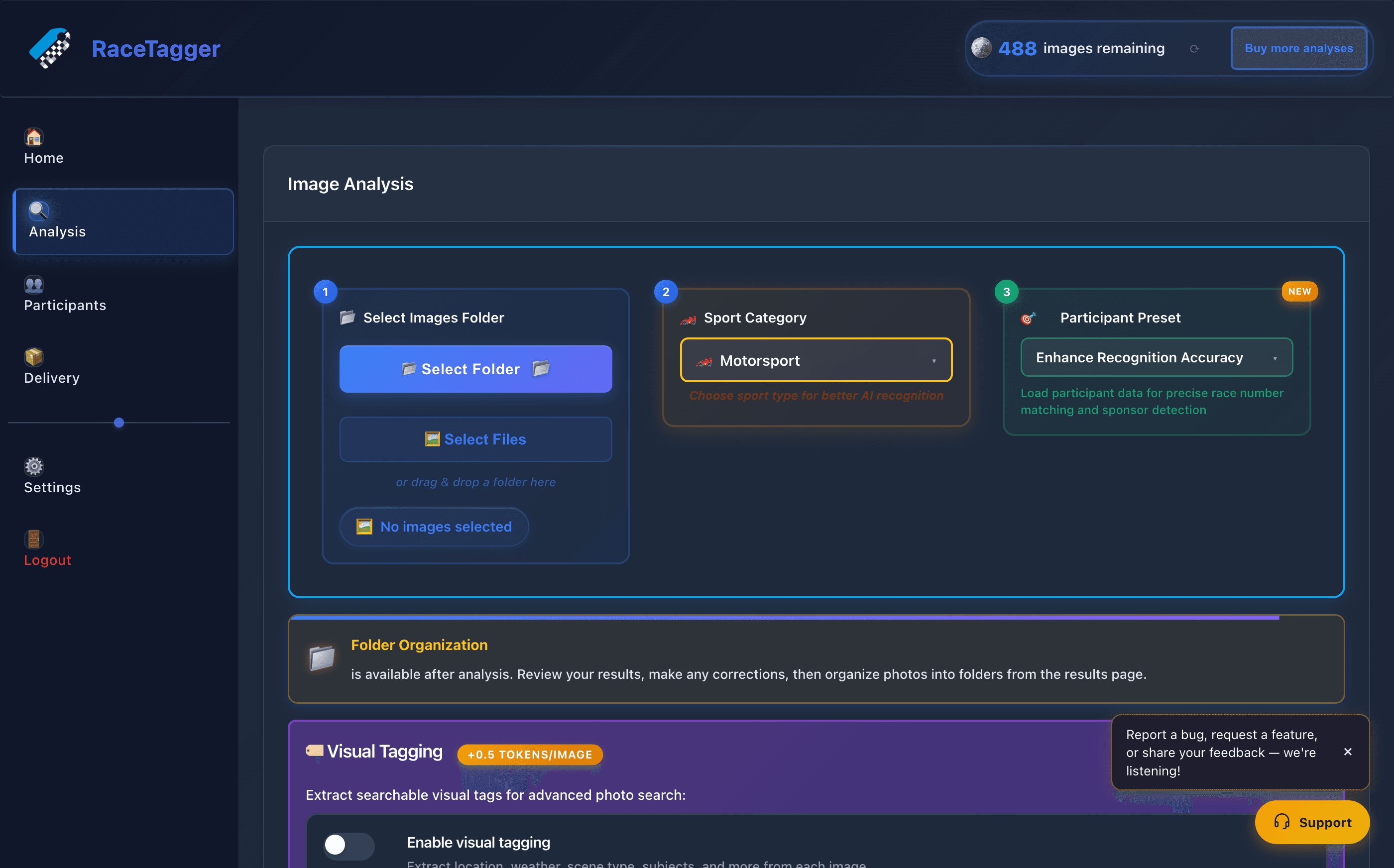
- 1Go to the Analysis page: Below the 3-step setup you'll find the 🏷️ Visual Tagging section.
- 2Toggle Enable visual tagging: A panel opens listing the tag categories that will be extracted (Location, Weather, Scene, Subjects, Style, Emotion).
- 3Enabling the toggle also turns on Embed tags as IPTC Keywords by default — this writes the tags into the image's…: metadata keywords, alongside the race-number/participant keywords, so they're searchable in Lightroom, Photo Mechanic, Capture One, or any DAM that reads IPTC data (see the app's metadata/IPTC writing feature). Untick it if you only want the tags available in-app, without touching the files.
- 4Run the analysis as usual (Start New Analysis): Tags are generated for every photo in the batch alongside normal recognition; no separate step is needed.
Limits and known behaviour
- Visual tagging is not persisted between sessions as a preference in the manager itself —
VisualTaggingManageralways starts withenabled: false; the toggle state shown at next launch actually comes from the app's separate "last analysis settings" restore (renderer/js/last-analysis-settings.js), not from this manager. - Tagging runs as a call to a Supabase edge function (
visualTagging) per image; if that call errors, times out (65s), or the account isn't authenticated, the run continues without tags for that image rather than failing the batch — a warning is logged, nothing is shown to the user as an error. - When embedding is on, tags are only added to keywords that aren't already present (case-insensitive de-dup against the race-number/participant keywords); a later manual correction re-adds only the tags that were already embedded on that file, respecting the original embed choice.
- The desktop app also forwards the preset name, sport category, and the photo's EXIF timestamp/GPS (when available) to the edge function to ground location tags against a known event calendar and reduce location mistakes; all of these are optional and the edge function falls back to a plain analysis when they're missing.
- Consumes additional credits per image on top of standard analysis (see the app or racetagger.cloud for current figures — not documented here per KB policy).