
Analysis Results
After the AI finishes processing, the results page shows every photo with its detected race number, team, driver, confidence score, and any visual tags. This is where you review matches, correct mistakes, and prepare for folder organization.
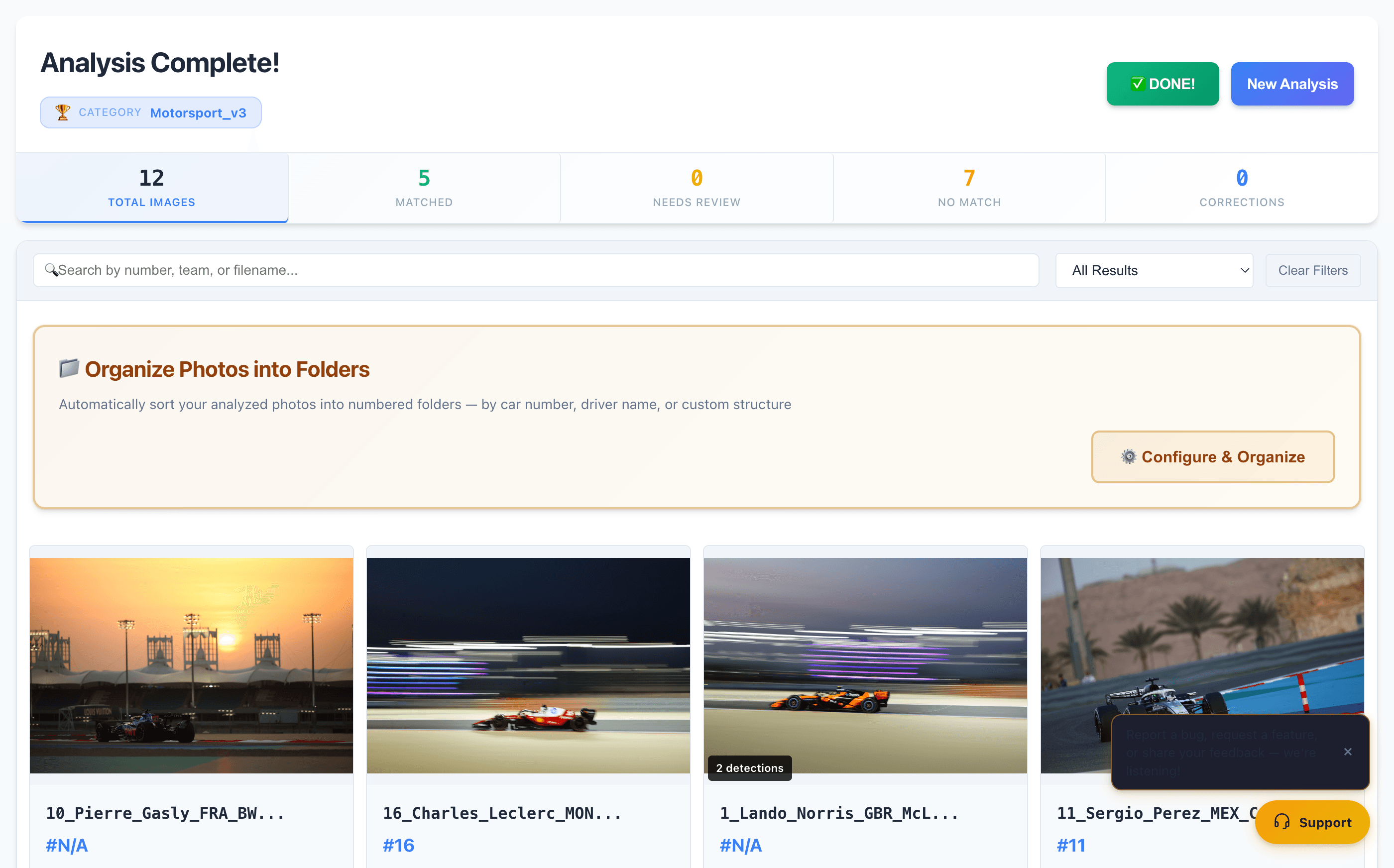
Results Overview
The top of the results page shows a header with the analysis ID, sport category badge, and preset name. Below that, four summary metrics give you an instant picture of the batch:
- Total — Total number of photos analyzed
- Matched — Photos where a race number was detected and matched
- No Match — Photos where no race number was found
- Corrections — Photos where you've manually corrected a detection
Below the summary, a scrollable grid displays all photos as thumbnail cards. Each card shows the image preview, detected race number, team name, driver name(s), confidence percentage, and a green "CSV matched" badge when the result was confirmed against your participant preset.
Search & Filter
Use the search bar to find photos by race number, team name, driver name, or filename. The filter dropdown lets you show only matched, unmatched, or corrected results. Two action buttons appear at the top right: "DONE!" (returns to the home screen) and "Start New Analysis" (begins a fresh batch).
Photo Detail View
Click any photo thumbnail to open the detail modal. The detail view shows:
- Filename and image counter — e.g., "101 / 149" so you know your position in the batch
- Full-size image preview with zoom controls (100%, zoom in/out, fullscreen)
- Recognition Results per vehicle — race number, team, driver(s), confidence %
- Save Changes / Reset buttons — for editing and reverting corrections
- Metadata — confidence score, analysis time, file size
All fields (race number, team, drivers) are editable. If the AI detected the wrong number, simply change it in the dropdown. Your correction is saved and associated with the image.
Corrections improve the AI
Your corrections are saved and used to improve future accuracy. Take a few minutes to review "No Match" photos — it's worth the investment.
Navigating Results
Use the left/right arrow buttons on either side of the image to move between photos without closing the detail modal. This makes quick corrections incredibly efficient — review, fix if needed, arrow to next. The image counter updates in real time so you always know where you are.